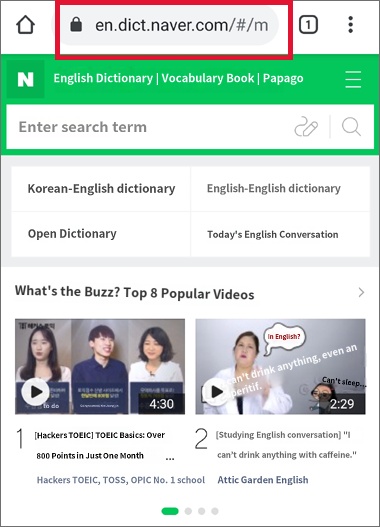
Blocking internet circumvention using Naver Dictionary
In the case of the Naver Dictionary or Papago Dictionary apps, they display parts of the Naver website within the app. As a result, users can click on links such as news articles to exit the dictionary screen and browse the internet. In this case, the timeline log shows the usage time for the "Naver Dictionary" or "Papago" app, but it does not monitor which articles, blogs, or cafes were visited. If the usage time for the Naver Dictionary app is excessive—amounting to several hours—it means the app is being used to bypass internet restrictions.
To prevent this, you should block the Naver Dictionary or Papago apps and set up the device to use the dictionary functions via the Chrome browser. There is no difference in dictionary functionality whether used via an app or the web.
The method is as follows:
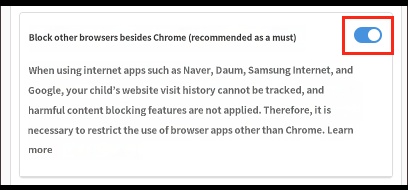
2) Rule Settings → Websites → Turn on "Block browsers other than Chrome"
3) Turn on the "Block all websites" feature and add the Naver Dictionary website address to the "Allowed websites" section
4) Use the Chrome browser to navigate to the Naver Dictionary site and search for words
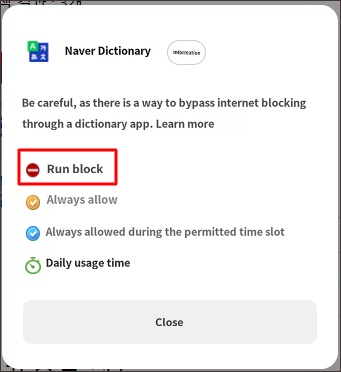
2) Rule Settings → Web → Turn on "Block browsers other than Chrome"
(After turning on this feature, please instruct your child to use the Chrome browser when accessing the internet.)
3) Turn on the "Block all websites" feature and add the Naver Dictionary address to the "Allowed websites" section.
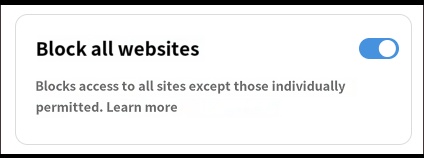
Add the dictionary address as an allowed site.
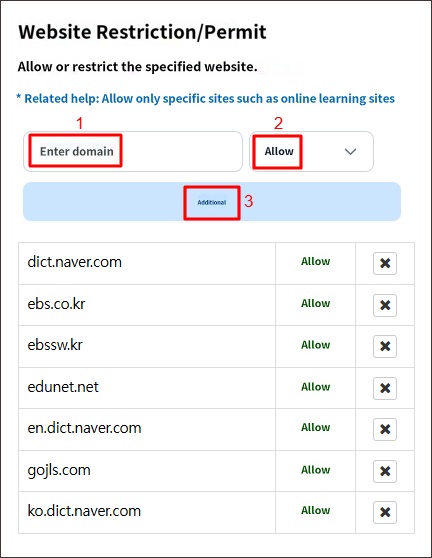
- If you only need the English dictionary, add only en.dict.naver.com
- For Papago, add papago.naver.com