How to create a Device Care widget
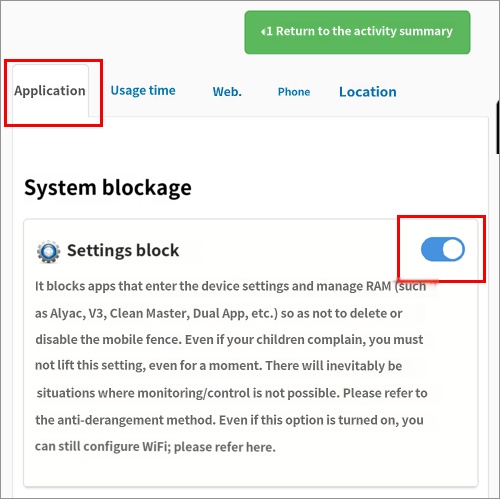
'ALYAC' or 'V3 antivirus' programs, which are frequently used for device optimization and RAM clearing, may disable Mobile Fence by revoking its accessibility permissions. To prevent this, even if you set the antivirus program to "Always Allow," the app will be rendered unusable if the "Block Settings" feature is enabled.
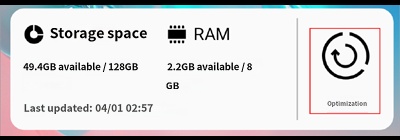
However, even if antivirus apps are blocked, you can still perform optimization and RAM clearing using the "Device Care" feature provided by Samsung devices. If you need to optimize your device, set it up by adding a "Device Care" widget.
(For LG devices, you can follow the same steps using the 'Smart Doctor' feature.)
The configuration steps are as follows:
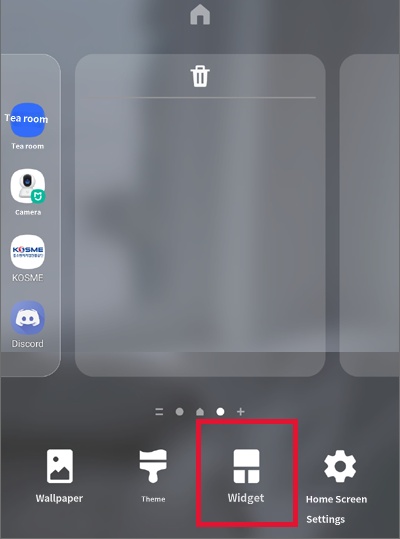
2) Long-press the home screen of the child's device and click 'Widgets'
3) Select 'Device Care' to add the icon to the home screen
4) Rule Settings → Apps → System Block → Block Settings → On
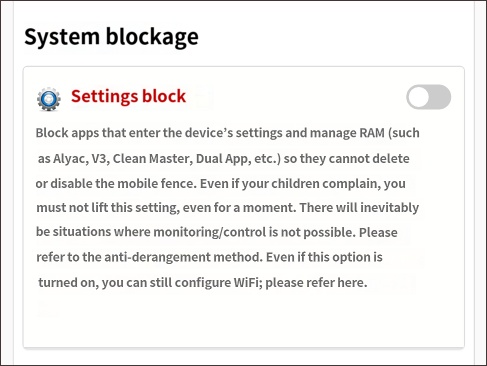
1) Rule Settings → Apps → System Block → Block Settings → Off
Since the 'Block Settings' rule prevents the creation of the Device Care widget, you must first disable this rule.
2) Long-press the home screen of the child's device and click 'Widgets'
3) Select 'Device Care' to add the icon to the home screen
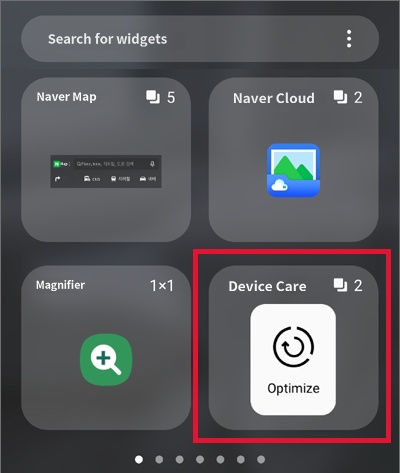
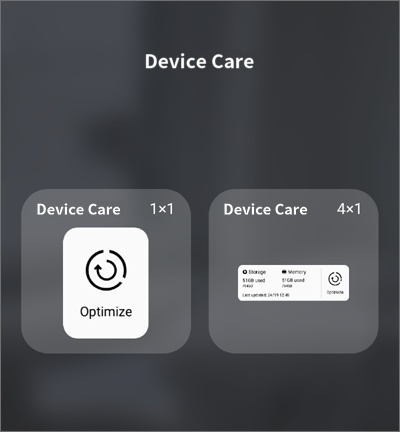
Please select a widget size that is convenient for you and add it to the home screen.
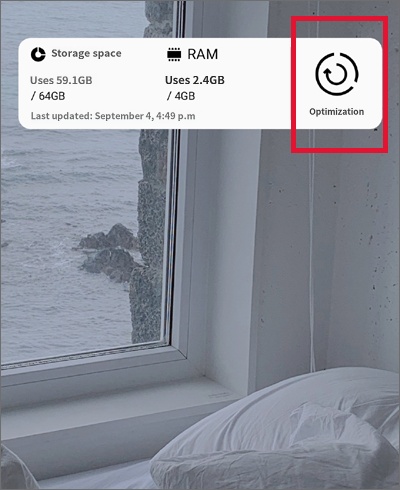
(It is now added. You can use it by clicking the Optimize button inside the red box.)
4) Rule Settings → Apps → System Block → Block Settings → On
The 'Block Settings' rule is essential for preventing the neutralization of Mobile Fence, so it must be set back to 'On'.