뒤로
Mobile hotspot blocking
Last updated :
You can prevent internet sharing with other devices by disabling the smartphone's mobile hotspot feature as follows.
By setting it up this way, even if your child turns on the hotspot feature via the notification bar, they will be unable to share the internet because they do not know the password you have set.
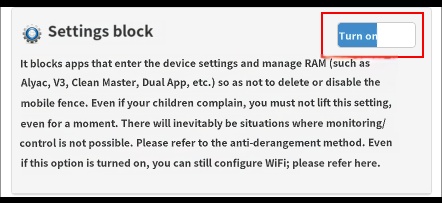
1) Child's Rule Settings → Temporarily turn off the "Block Settings" feature
2) On the child's device, go to "Settings" → Connections → Mobile Hotspot and Tethering → Mobile Hotspot → Turn on
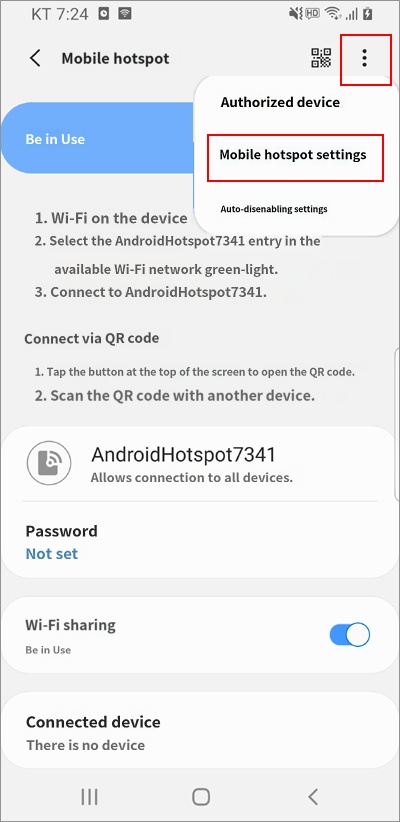
3) On the Mobile Hotspot screen, click the icon in the top right → Configure Mobile Hotspot (Figure 1)
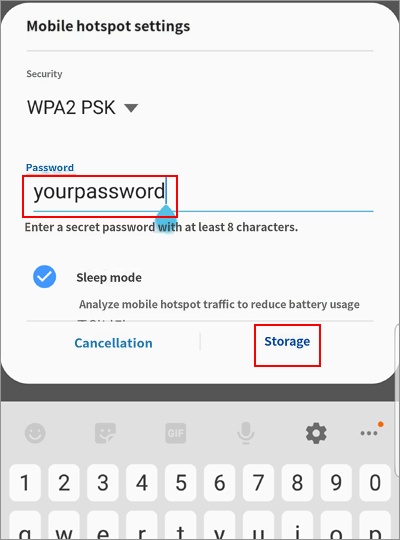
4) Security → WPA2 → Set Password (set a password unknown to the child) (Figure 2)
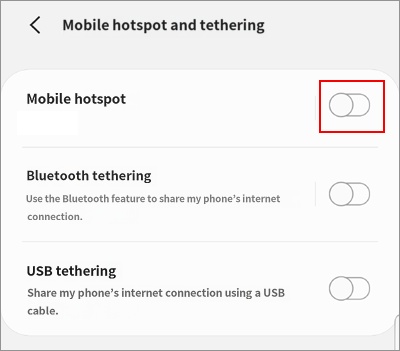
5) Turn off the Mobile Hotspot feature (Figure 3)
6) Child's Rule Settings → Turn the "Block Settings" feature back on
2) On the child's device, go to "Settings" → Connections → Mobile Hotspot and Tethering → Mobile Hotspot → Turn on
3) On the Mobile Hotspot screen, click the
icon in the top right → Configure Mobile Hotspot (Figure 1)4) Security → WPA2 → Set Password (set a password unknown to the child) (Figure 2)
5) Turn off the Mobile Hotspot feature (Figure 3)
6) Child's Rule Settings → Turn the "Block Settings" feature back on
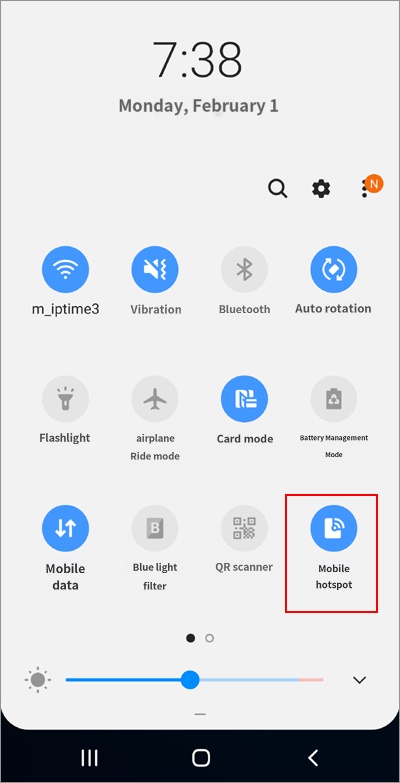
Since you must prevent your child from changing the hotspot password, the "Block Settings" option in the child's Rule Settings must remain turned on.