
Delete "Secure Folder"
Apps cloned and used within the Samsung Secure Folder are characterized by the fact that they cannot be blocked or monitored by Mobile Fence.
To prevent this issue, the use of Secure Folder is restricted when the "MDM Agent" among the Mobile Fence features is activated. However, if apps cloned within the Secure Folder have been placed as shortcuts on the home screen before the MDM Agent is activated, these apps may continue to be used.
Below are the instructions for removing the Secure Folder feature.
2. Go to "Settings" → "Biometrics and security" or "Security and privacy" on the child's device
3. Click "Secure Folder"
4. Click "More settings"
5. Click "Uninstall"
6. Reinstall the Mobile Fence app7. Configure anti-tampering settings
8. Complete
1. Uninstall the Mobile Fence app
You must uninstall the Mobile Fence app to access the Secure Folder menu.
If you proceed to step 2 without uninstalling, the relevant menu will not be visible, so please uninstall the app first.
http://mobilefence.com/kms/49206776
2. Go to "Settings" → "Biometrics and security" / "Security and privacy" on the child's device
Menu names may vary depending on the Android version.
*Android 12 or lower: "Biometrics and security" → "Secure Folder"
*Android 13: "Security and privacy" → "Secure Folder"
*Android 14: "Security and privacy" → "More security settings" → "Secure Folder"
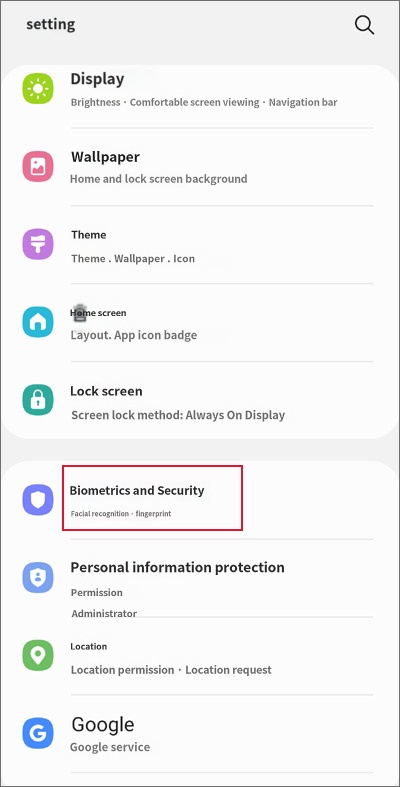
3. Click 'Secure Folder'
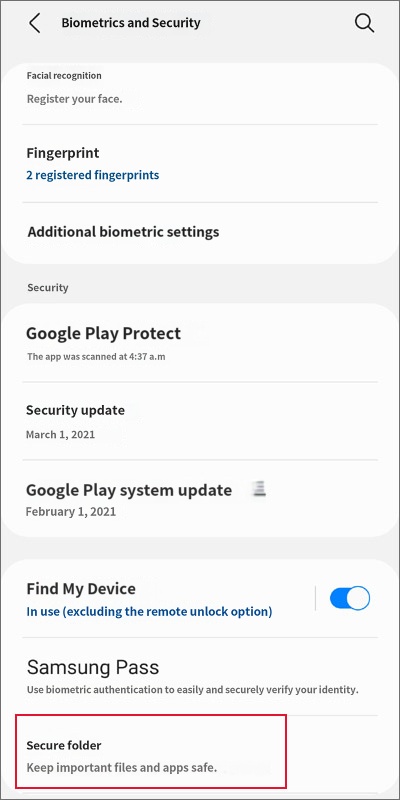
4. Click 'More settings'
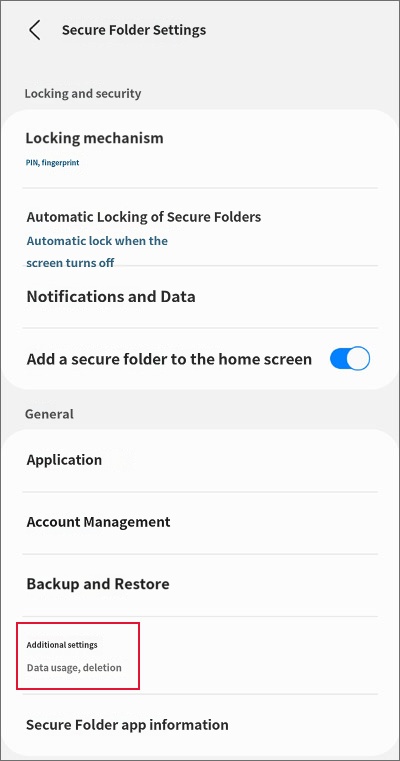
5. Click 'Uninstall'
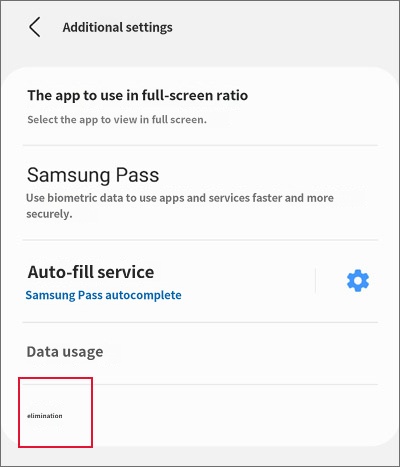
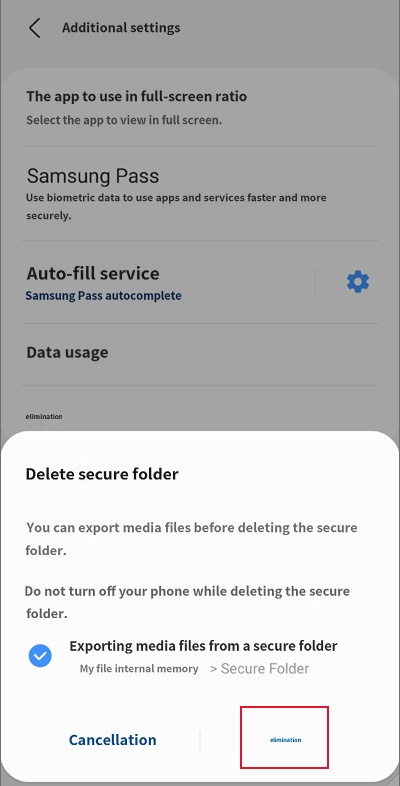
If there are many cloned media and app files in the Secure Folder, the uninstallation may take some time.
Please wait a moment until the deletion is complete.
6. Reinstall the Mobile Fence app
http://mobilefence.com/kms/7756565877
7. Configure anti-tampering settings
http://mobilefence.com/kms/73590732
8. Complete

