
뒤로
Synchronizing child device from parent device
Last updated :
How to Synchronize
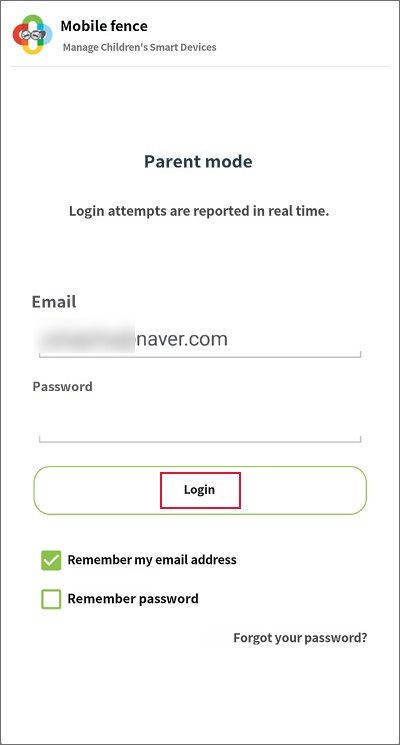
1) Log in to the Mobile Fence parent device
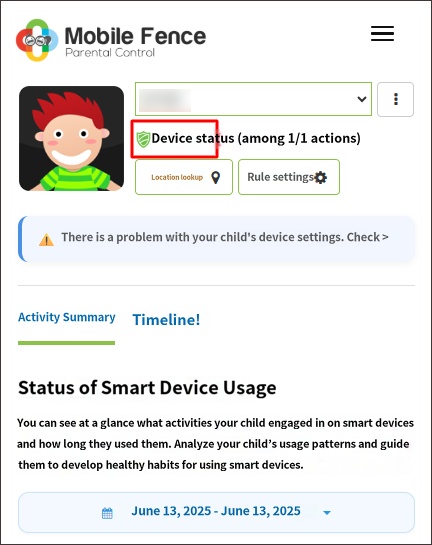
2) Click 'Device Status' under the child's profile name at the top
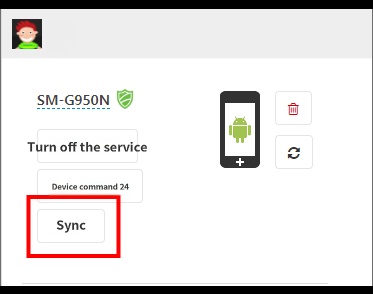
3) Click 'Sync' in the child's profile
2) Click 'Device Status' under the child's profile name at the top
3) Click 'Sync' in the child's profile
1) Log in to the Mobile Fence app on the parent device.
2) Click 'Device Status' under the child's profile name at the top.
3) Perform 'Sync' in the child's profile.
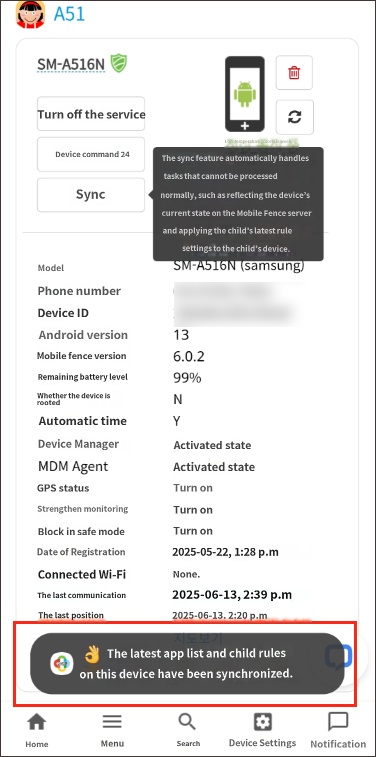
When connected to data, a 'Latest Update' notification will appear, and synchronization will be complete.
If not connected to data, a red 'Abnormal Warning' window will appear when performing 'Sync'.
Check if the child's device is connected to data or Wi-Fi. (If using a data plan, also check if the monthly data allowance has been exhausted.)
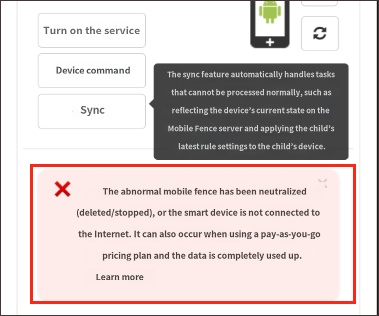
Check if the child's device is connected to data or Wi-Fi. (If using a data plan, also check if the monthly data allowance has been exhausted.)
The following tasks are performed during synchronization in parent mode:
- Applying the latest rules to the device
- Sending app usage history (timeline logs) while offline to the server
- Reflecting the list of newly installed apps on the device to the server

