
뒤로
Reset password
Last updated :
How to Reset Password
1) Launch the Mobile Fence app.
2) Click 'Forgot password?' at the bottom of the Parent Mode login screen.
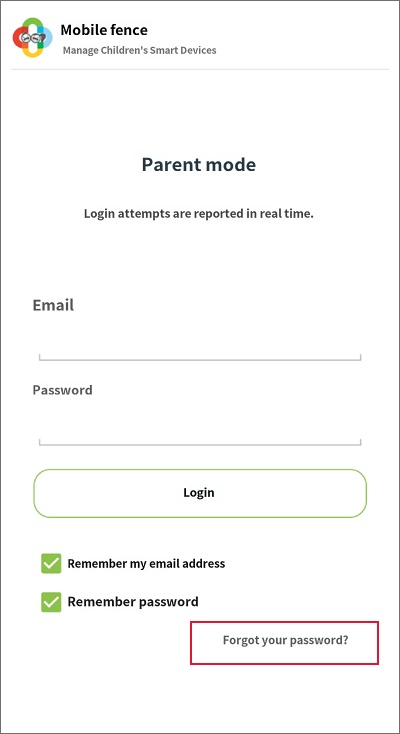
(Please click only once. If clicked multiple times, you may receive duplicate password issuance emails; in this case, you must check the last email received.)
3) Enter your [Mobile Fence ID] and check your email inbox and spam folder.
(It cannot be sent to an email address other than the one registered at the time of sign-up.)

4) Open the temporary password notification email sent to your inbox.

5) Click the temporary password issuance link included in the email.

1. Even if you change your password or receive a temporary password on the parent device, the updated password will not be applied to the child's device if it is not connected to mobile data or Wi-Fi. Therefore, if the password is still reported as incorrect after changing it, please check the internet connection status of the child's device.
2. If the password reset email does not arrive, please check your "spam" folder as it may have been filtered there.
2. If the password reset email does not arrive, please check your "spam" folder as it may have been filtered there.

