EC-2

Lock the device screen with a PIN  

Last updated :

When the child's device is normally connected to data or Wi-Fi, you can remotely lock the screen of the child's device from the parent's device using a password.


1. Log in to Mobile Fence on the parent's device → Child Monitoring/Rule Settings → Click 'Device Status' on the top profile.
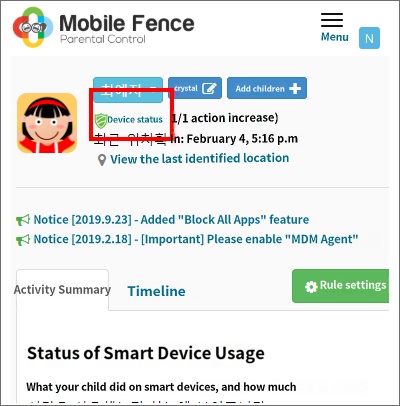
 

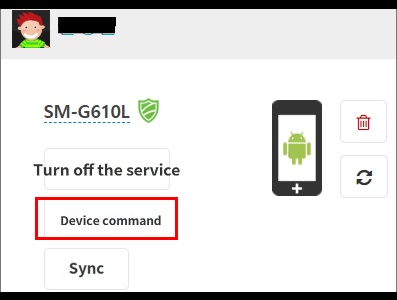
2. Click Device Command.
 

3. Click Screen Lock.
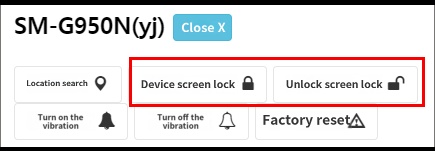
 

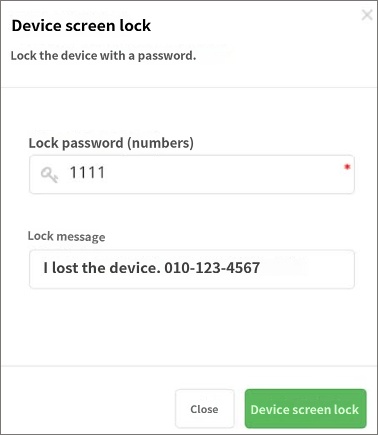
4. Enter the password to lock the screen and the lock message to be displayed on the child's device.


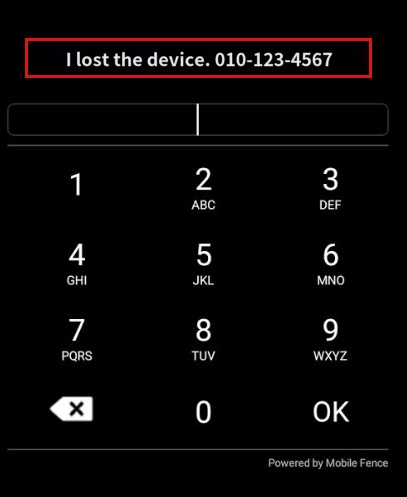
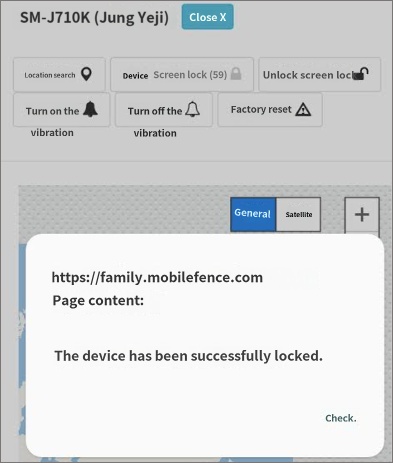
5. Once the screen lock is complete, a message will be displayed as shown below.
 

Lock screen displayed on the child's device
→ The lock message is also displayed at the top.


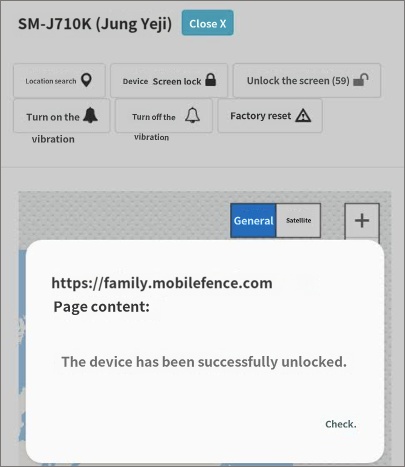
5) To unlock the screen, you can follow the same path as above, and the screen shown below will appear when unlocked.
 

This feature does not change the device's PIN itself.

Contact Us

Before inquiring...Have you been looking for this answer?
โ€ข How to block child disable Mobile Fence app?
โ€ข I want to know how to uninstall MobileFence app.
โ€ข Does a parentsโ€™ device get blocked?
โ€ข How to see the contents of Text?

An error has occurred while registering your question.
Your question has been successfully registered.
We will get back to you within 24 hours on weekdays. Thank you!

By providing related screens, we can process your inquiry more precisely and quickly.

Contact Us

Before inquiring...Have you been looking for this answer?
โ€ข How to block child disable Mobile Fence app?
โ€ข I want to know how to uninstall MobileFence app.
โ€ข Does a parentsโ€™ device get blocked?
โ€ข How to see the contents of Text?

An error has occurred while registering your question.
Your question has been successfully registered.
We will get back to you within 24 hours on weekdays. Thank you!

By providing related screens, we can process your inquiry more precisely and quickly.