
Blocking internet circumvention through the EBS app
The "EBS App" is essentially a web wrapper of the EBS website. By clicking on various links provided within the site, it is sometimes possible to navigate all the way to the Naver main page. In this case, the timeline only records the EBS app usage time, and there is no way to monitor which articles your child is reading or which blogs/cafes they are visiting on the bypassed Naver site. If your child's usage statistics show excessive time spent in the EBS app, they may be using this internet bypass method.
To prevent this, you should block the EBS app and set up the device to use the EBS website instead.
The process is summarized below:
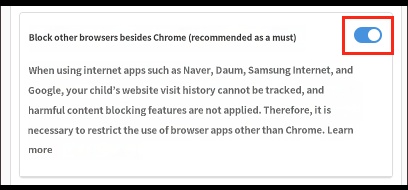
2) Rule Settings → Web → Turn on 'Block browsers other than Chrome'
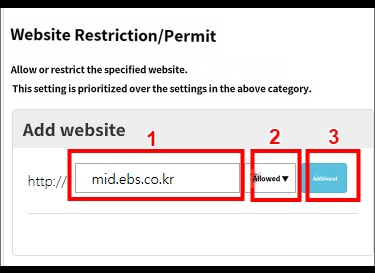
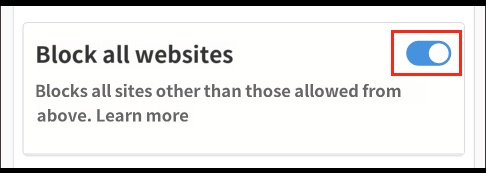
3) Turn on the 'Block all websites' feature and add the EBS lecture site URLs to the 'Allowed websites' list.
4) Open the 'Chrome browser', go to the EBS lecture site, and watch the online lectures.
Now, let's look at the detailed setup instructions.
1) Rule Settings → Apps → Block the 'EBS App'
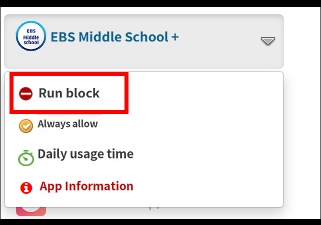
2) Rule Settings → Web → Turn on 'Block browsers other than Chrome'
(After turning on this feature, please instruct your child to use only the Chrome browser for internet access.)
3) Turn on the 'Block all websites' feature and add the EBS lecture site URLs to the 'Allowed websites' list.
(The addresses below are examples; only register the online lecture sites your child actually uses.)
EBS Elementary Site → primary.ebs.co.kr
EBS Middle School Site → mid.ebs.co.kr
EBS High School Lectures Site → ebsi.co.kr
EBS Homepage (required for login) → ebs.co.kr
4) Now, follow these steps on your child's device:
 button in the top right → Check "Desktop site" → Click the "Learn" button
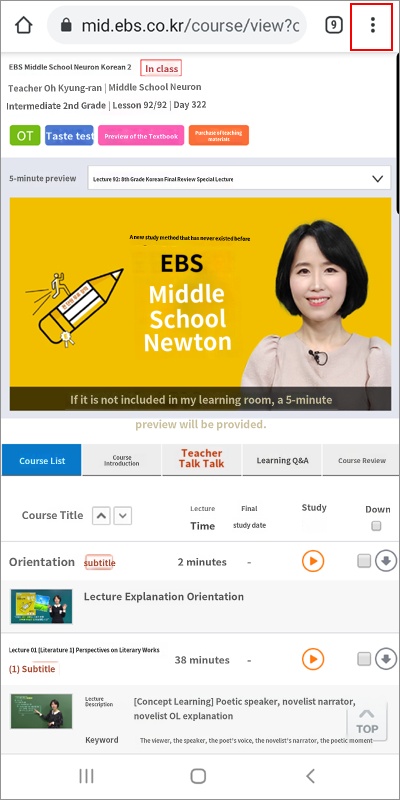
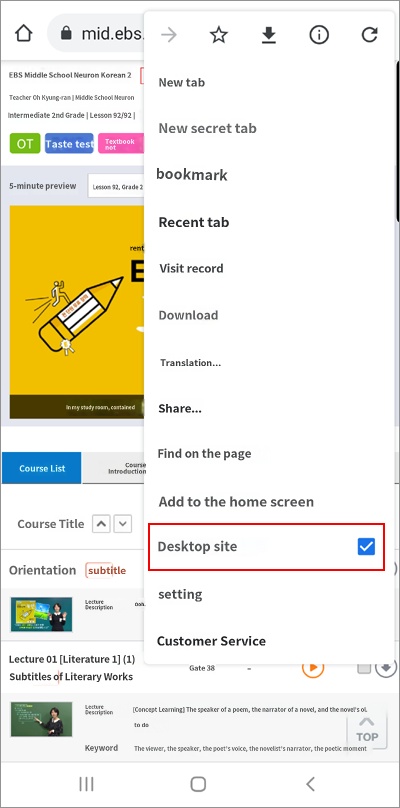
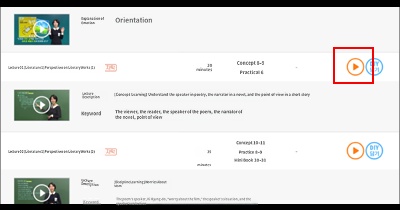
Please note that when playing lecture videos as described above, depending on the device, there may be an issue where full-screen mode is not supported even if the "Full Screen" button is pressed. This is an error occurring in the web player and is not caused by Mobile Fence.
In this case, try to view the video in a larger format by clicking the button at the bottom right of the screen instead of the "Full Screen" button.
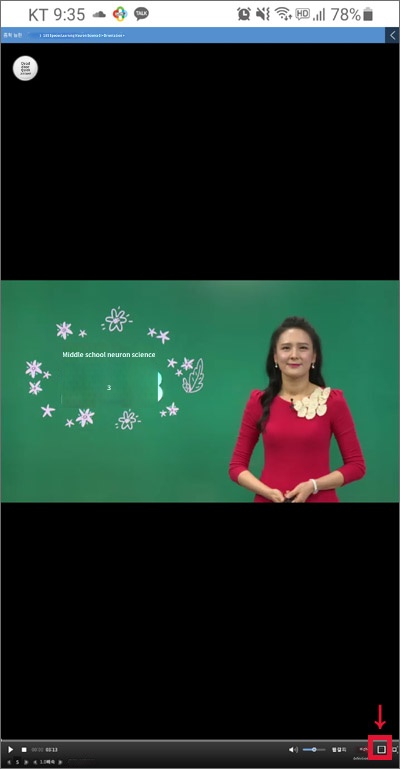
Once the screen is enlarged, use your device's "Screen Rotation" feature (landscape mode) to watch the lecture video.

