How to set age restrictions for Play Store app downloads
The Play Store settings offer a 'Parental controls' option, which allows you to restrict the use of apps and content in the Play Store based on age.
The configuration steps are as follows:
2. Tap the profile button in the top right corner
3. Go to 'Settings'
4. Family → 'Parental controls' → Turn 'On'
5. Set a content PIN
6. Select 'Apps & games' → Set age restrictions
7. Rule settings → Apps → Labs → Block Play Store settings → On
1. Launch the Google Play Store on the child's device
2. Click the profile button in the top right corner
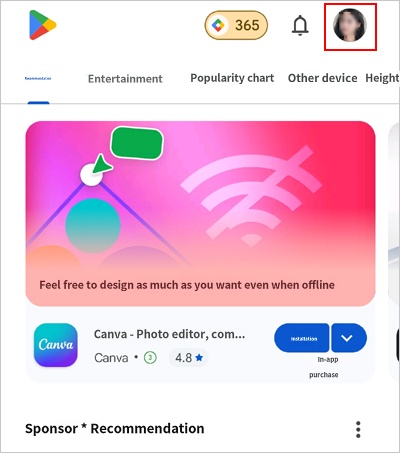
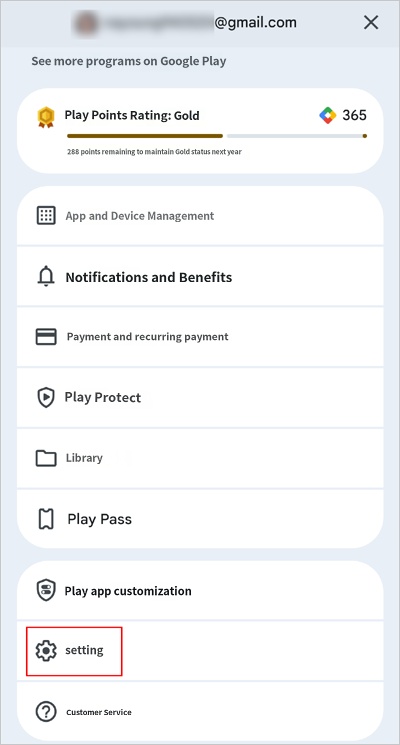
3. Click 'Settings'
4. Family → 'Parental controls' → Turn 'On'
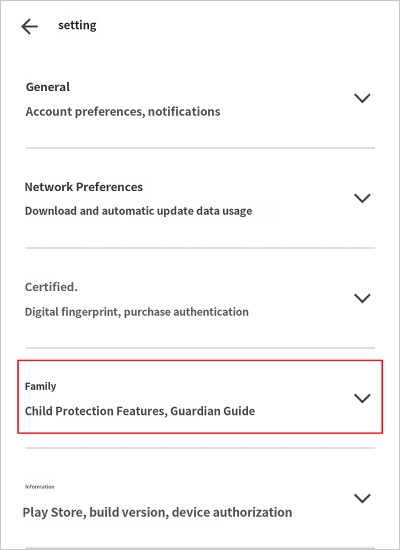
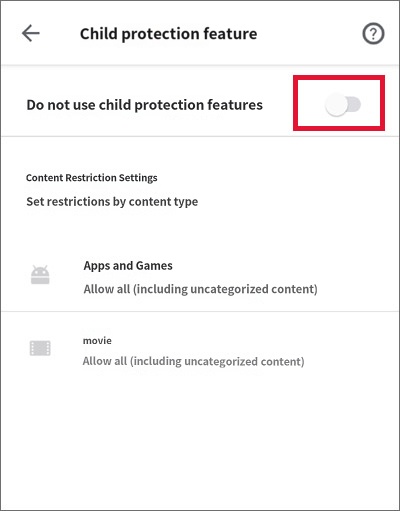
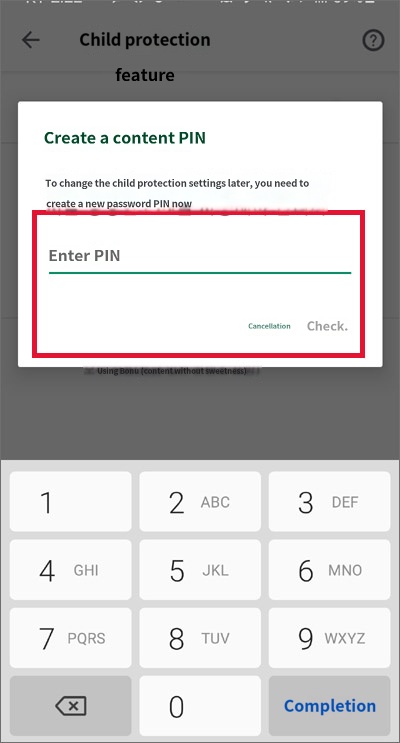
5. Set a content PIN
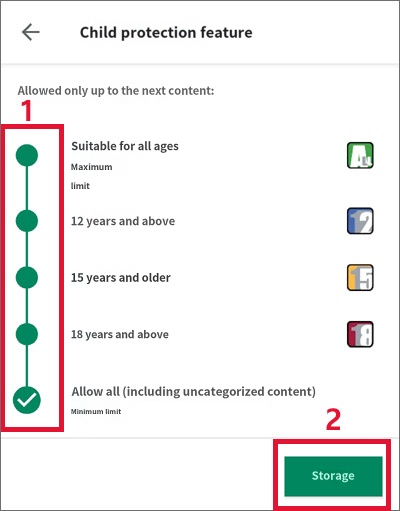
6. Tap 'Apps & games' to set age restrictions
Age restrictions can be set after configuring the PIN lock.
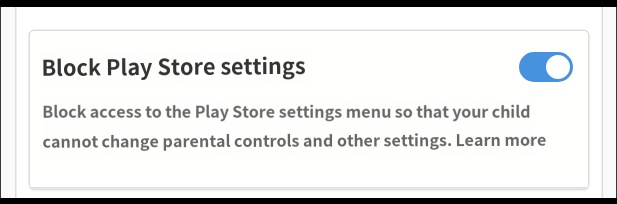
7. Child's Rule settings → Apps → Labs → Block Play Store settings → On
Turn on 'Block Play Store settings' if you want to prevent your child from accessing the settings menu itself.
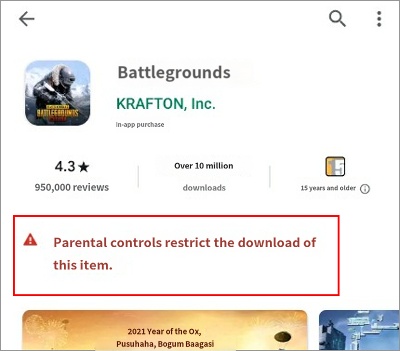
※ Screen shown after applying the "Parental controls" settings above when attempting to access apps in the Play Store that are not age-appropriate: